
Fortnite Chapter 6: Optimize Your Gameplay with Enhanced PC Settings
Optimize Your Fortnite PC Settings for Peak Performance
Fortnite's demanding nature can lead to frustrating low frame rates, impacting gameplay. However, optimizing your in-game settings can significantly improve performance. This guide outlines the best PC settings for a smoother Fortnite experience.
Display Settings:
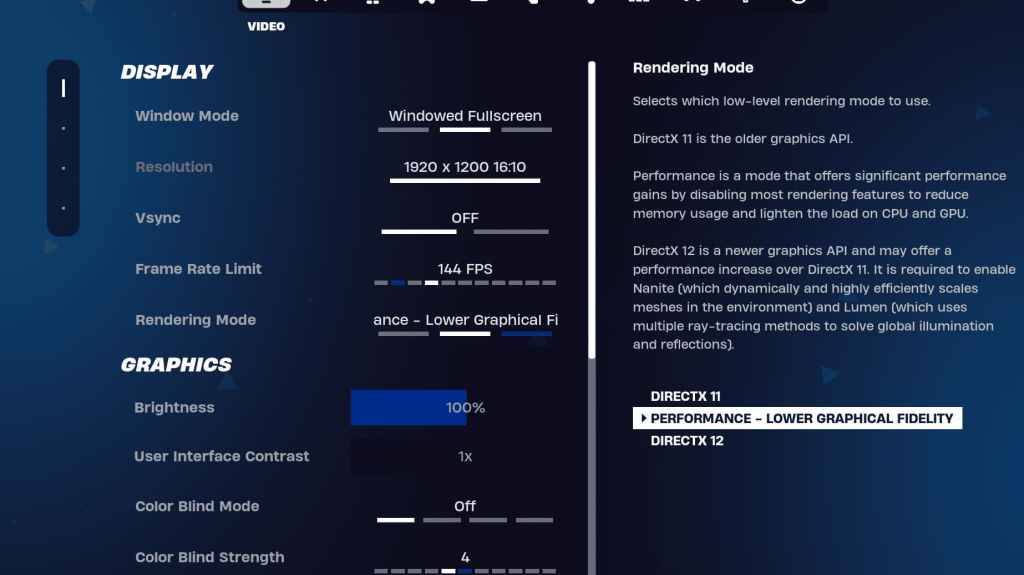
The Display and Graphics sections within Fortnite's video settings are crucial for performance. Here's the recommended Display configuration:
| Setting | Recommended |
|---|---|
| Window Mode | Fullscreen (best performance), Windowed Fullscreen (for frequent tabbing) |
| Resolution | Native monitor resolution (e.g., 1920x1080), lower if necessary for low-end PCs |
| V-sync | Off (prevents input lag) |
| Framerate Limit | Monitor Refresh Rate (e.g., 144Hz, 240Hz) |
| Rendering Mode | Performance (highest FPS) |
Rendering Modes: Choose "Performance" mode for maximum frames per second (FPS) and minimal input lag, although visual quality will be reduced. DirectX 11 offers stability, while DirectX 12 provides potential performance boosts on newer systems with enhanced graphics options.
Graphics Settings:
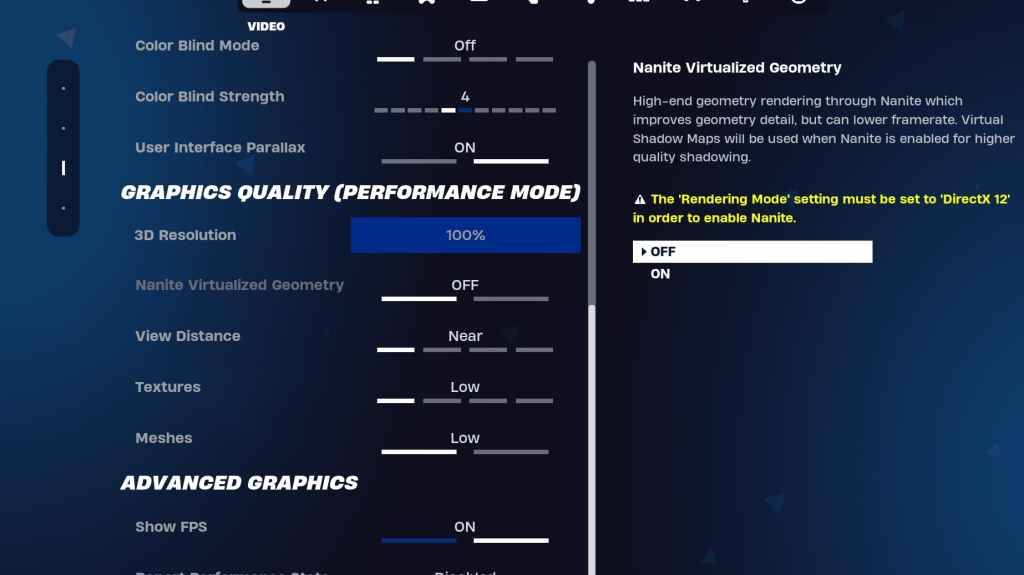
The Graphics settings directly impact visual quality and FPS. Prioritize resource efficiency for better performance:
| Setting | Recommended |
|---|---|
| Quality Preset | Low |
| Anti-Aliasing & Super Resolution | Off/Low |
| 3D Resolution | 100% (70-80% for low-end PCs) |
| Nanite Virtual Geometry (DX12) | Off |
| Shadows | Off |
| Global Illumination | Off |
| Reflections | Off |
| View Distance | Epic |
| Textures | Low |
| Effects | Low |
| Post Processing | Low |
| Hardware Ray Tracing | Off |
| Nvidia Low Latency Mode | On + Boost (Nvidia GPUs only) |
| Show FPS | On |
Game Settings:
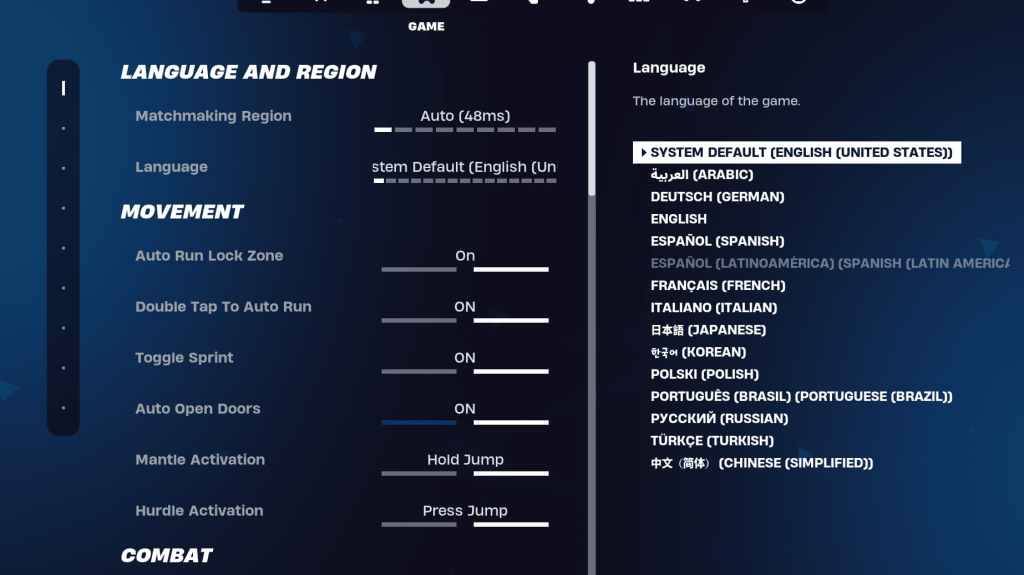
Game settings don't affect FPS but significantly influence gameplay. Customize these based on preference, but consider these recommendations:
- Movement: Auto Open Doors: On; Double Tap to Auto Run: On (controllers)
- Combat: Hold to Swap Pickup: On; Toggle Targeting: Personal Preference; Auto Pickup Weapons: On
- Building: Reset Building Choice: Off; Disable Pre-edit Option: Off; Turbo Building: Off; Auto-Confirm Edits: Personal Preference; Simple Edit: Personal Preference; Tap to Simple Edit: On (if Simple Edit is On)
Audio Settings:
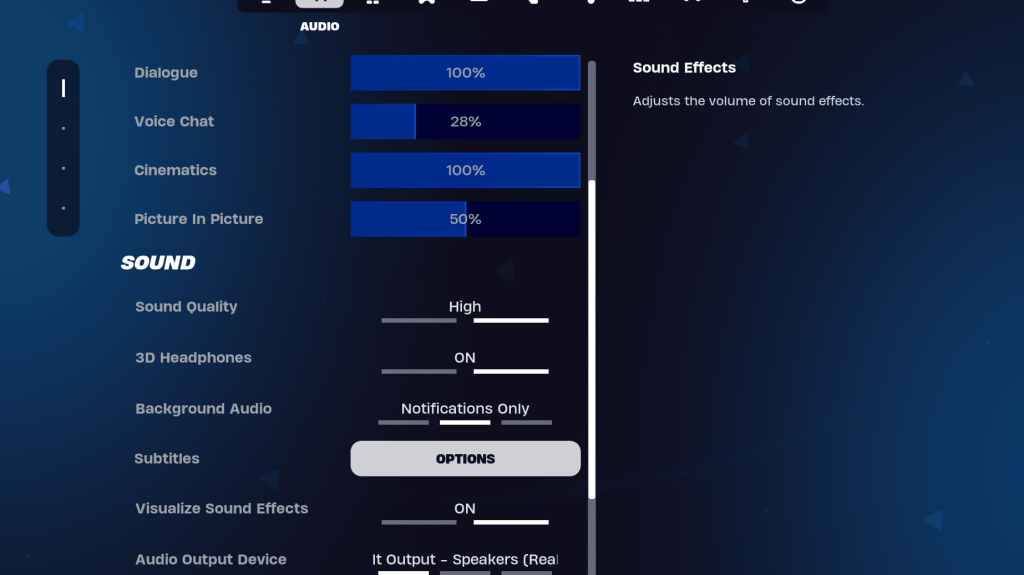
Enable 3D Headphones (experiment for compatibility) and Visualize Sound Effects for enhanced audio cues.
Keyboard and Mouse Settings:
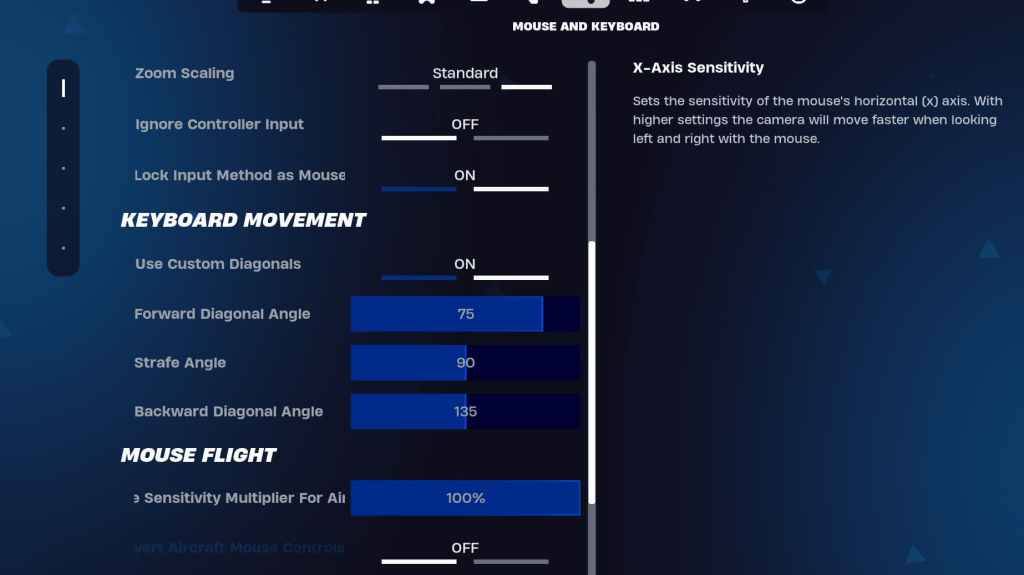
Adjust sensitivities (X/Y, Targeting, Scope, Building/Editing) to your preference. Consider using custom diagonals with adjusted angles (Forward: 75-78, Strafe: 90, Backward: 135). Keybinds are highly personal; experiment to find what works best for you.
By implementing these settings, you can significantly improve your Fortnite performance and enjoy a smoother, more responsive gaming experience. Remember that these are recommendations; fine-tune them to match your individual preferences and hardware capabilities.










![Zenless Zone Zero [ZZZ] Codes (December 2024) – 1.4 Livestream Codes](https://imgs.96xs.com/uploads/54/1735628542677396feeb34f.jpg)
- 1 Stellar Blade PC Release Date Confirmed For 2025 Jan 05,2025
- 2 WWE 2K24 Update 1.11 Released Nov 10,2024
- 3 New LEGO Sets for March 2025: Bluey, Harry Potter, and More Mar 06,2025
- 4 Gothic 1 Remake Demo: Frame-by-Frame Comparison with Original May 01,2025
- 5 Roblox's RNG War TD Codes Unleashed (2025 Update) Feb 12,2025
- 6 PUBG Mobile Redeem Codes for January 2025 Live Now Feb 13,2025
- 7 "Assassin's Creed Shadows Unveils Canon Mode" Apr 26,2025
- 8 Pokémon TCG Pocket Unveils Premium Pass and Trade Tokens Apr 21,2025




![Business of Loving [v0.12.5i] [Dead End Draws]](https://imgs.96xs.com/uploads/18/1719555107667e5423ef803.jpg)
-
Top Business Management Apps for Android
A total of 10
-
Best Racing Games to Play Now
A total of 10
-
Best Competitive Multiplayer Games on Android
A total of 10